
Showing service resources
Find quick guides, video tutorials, and troubleshooting steps for
SentriKey Showing Service®
Note: This can only be done in the Web Portal of the SentriKey Real Estate at this time.
Adding Team Members
- Log into SentriKey® Web Portal and click your Profile Dropdown Icon in the top right→ My Settings → Account Settings.
- Locate Team Members and search for the agent's name.
- Send invitation. Once accepted, both agents share lockbox ownership, showing schedules, and listing access.
Add Team Members
Instructions for inviting team members to share lockbox ownership and listing management duties.
Understanding Appointment Statuses
- Automatically Confirmed: Instant approval (common for Go & Show listings).
- Pending Approval: Awaiting confirmation from the seller, occupant, or listing agent.
- Declined: Request was rejected due to seller availability or a schedule conflict.
Web Portal Instructions
Watch the web guide ↗
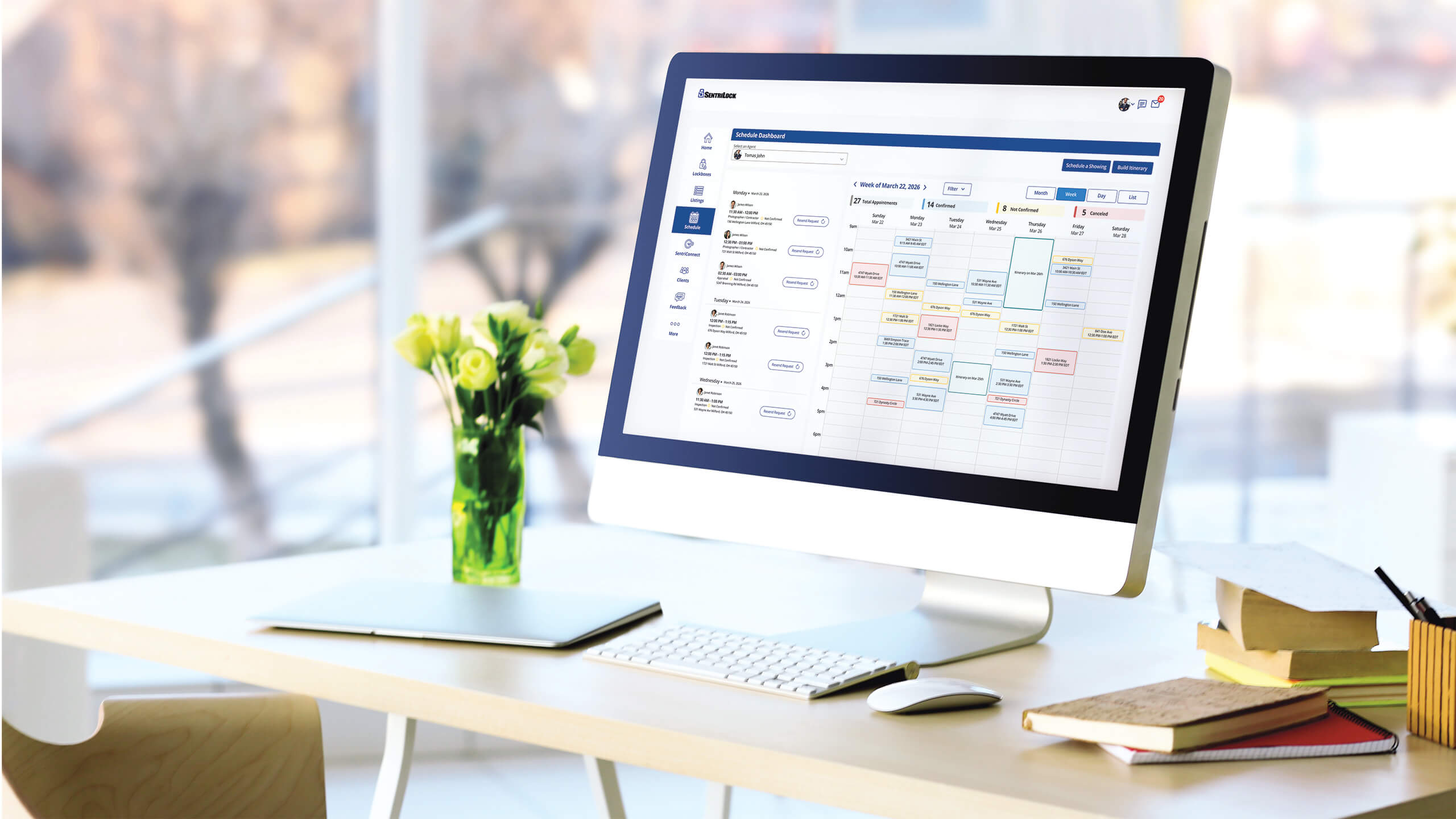
- Log In & Open Schedule: Log into the SentriKey® web portal and click the Schedule tab to open your dashboard.
- Start an Itinerary: Click Build Itinerary in the top-right corner, enter a date and title, then click Start Building.
- Select Listings: Search for and select all properties you want to include in the tour.
- Configure Showing Details: Set your preferred appointment type, duration, and time slot for each property. Click Add a Stop to build in breaks or personal errands.
- Optimize Route with SAM®: Click Optimize Route. SAM® AI will analyze property locations and available time slots to organize your route for maximum efficiency.
- Submit Requests: Click Request All to send all showing requests simultaneously.
Mobile App Instructions
Watch the mobile guide ↗
- Open App & Navigate to Itineraries: Open the SentriKey® Real Estate app, switch to the Showing Service home screen, tap My Itineraries, then tap the + icon.
- Start an Itinerary: Enter your itinerary details (date, title, and notes), then tap Start Building.
- Select Listings: Search for and select all properties you want to include in the tour.
- Configure Showing Details: Set your preferred duration, appointment type, and time slot for each property. Tap Add a Stop to include breaks or personal errands.
- Optimize Route with SAM®: Tap Optimize Route. SAM® AI will analyze property locations and available time slots to sequence your day for maximum efficiency.
- Submit Requests: Tap Request All to send all showing requests simultaneously.
Build a Showing Itinerary
Create multi-property showing itineraries and optimize driving routes automatically with SAM®.
The Agent Safety feature is not a substitute for dialing 911. It sends a message to your safety notification contacts you have set up to let them know you are in danger and provide your location. View the Agent Safety Release Agreement ↗.
Enabling the Agent Safety Feature
- Open the SentriKey® Real Estate App and navigate to the Hamburger Menu (≡) → My Settings → Agent Safety.
- Toggle the feature On.
- Follow the automatic prompt to set up your safety contacts. Tap the blue + icon to add additional people.
How to Use the Agent Safety Feature at a Showing
- Follow the standard app instructions to open a lockbox key bin ↗.
- Ensure the Agent Safety toggle is on before proceeding.
- When the safety check-in screen appears, select the appropriate response:
- Send Alert: Immediately texts your active location and a distress message to your emergency contacts.
- Ask me Again in 2 Minutes: Delays the check-in prompt temporarily.
- End Agent Safety Timer: Closes the safety session once you are secure.
- If you do not respond to the first check-in prompt, a second one will appear 60 seconds later.
- If the second prompt goes unanswered, the app automatically triggers the Send Alert message to your contacts.
Enable Agent Safety
Learn how to enable and use the Agent Safety feature in the SentriKey® Real Estate App to alert designated contacts if you need help during a showing.
How to Schedule Standard Showings with SentriKey Showing Service®
Understanding Appointment Statuses
- Automatically Confirmed: Instant approval (common for Go & Show listings).
- Pending Approval: Awaiting confirmation from the seller, occupant, or listing agent.
- Declined: Request was rejected due to seller availability or a schedule conflict.
SentriKey® Web Portal Instructions
Watch the web guide ↗
- Log In & Open Schedule: Log into the SentriKey® web portal and click the Schedule tab to open your dashboard.
- Start an Itinerary: Click Build Itinerary in the top-right corner, enter a date and title, then click Start Building.
- Select Listings: Search for and select all properties you want to include in the tour.
- Configure Showing Details: Set the appointment type, duration, and time slot for each property. Click Add a Stop to build in breaks or errands.
- Optimize Route with SAM®: Click Optimize Route. SAM® AI will analyze listing locations and available time windows to organize your route for maximum efficiency.
- Submit Requests: Click Request All to send all showing requests at once.
SentriKey® Mobile App Instructions
Watch the mobile guide ↗
- Open App & Navigate to Itineraries: Open the SentriKey® Real Estate app, switch to the Showing Service home screen, tap My Itineraries, then tap the + icon.
- Start an Itinerary: Enter your itinerary details (date, title, and notes), then tap Start Building.
- Select Listings: Search for and select all properties you want to include in the tour.
- Configure Showing Details: Set your preferred duration, appointment type, and time slot for each property. Tap Add a Stop to include breaks or personal errands.
- Optimize Route with SAM®: Tap Optimize Route. SAM® AI will analyze property locations and available time slots to sequence your day for maximum efficiency.
- Submit Requests: Tap Request All to send all showing requests simultaneously.
Team Appointments
Note: You can only schedule on behalf of others if it's on your own listing.
Web Portal Instructions
Watch the web guide ↗
- Log In & Open Schedule: Log into the SentriKey® web portal and click the Schedule tab to open your dashboard.
- Select Team Member: Click the agent dropdown in the upper-left corner of the dashboard.
- Choose Agent: Select the team member you are scheduling the showing on behalf of.
- Schedule Showing or Itinerary: Proceed with scheduling by following the standard steps for a Single Showing or Build Itinerary.
Out-of-Area & Third-Party Agent Appointments
Note: You can only schedule on behalf of others if it's on your own listing.
Web Portal Instructions
Watch the web guide ↗
- Log In & Open Schedule: Log into the SentriKey® web portal and click the Schedule tab to open your dashboard.
- Start Showing Request: Click Schedule a Showing in the top-right corner, then search for and select the listing.
- Select Agent Type:
- In-System Agent: Click the Select a Showing Agent search bar, type the agent's name, and select them from the list.
- Out-of-Area Agent: Check the Out of Area Agent box, then enter the visiting agent's name, company/brokerage, and contact information.
- Enter Appointment Details: Choose your preferred showing date, appointment type, duration, and an available time slot. Add client details if needed.
- Submit Request: Click Schedule Now to submit the appointment request.
Mobile Instructions
Watch the mobile guide ↗
- Open App & Navigate to Schedule: Open the SentriKey® Real Estate app, switch to the Showing Service home screen, and tap Schedule a Showing.
- Select Listing: Search for and select the listing you are booking on behalf of another agent.
- Enter Agent & Appointment Details: Select your showing date, duration, appointment type, and time slot. Enter the out-of-area agent's contact information and client details as prompted.
- Submit Request: Tap Schedule Now to submit the appointment request.
Schedule Showing Appointments (Standard, Team, & Out-of-Area)
Instructions for booking single showings, scheduling for team members, and booking out-of-area agents.
Web Portal Instructions
- Log into the SentriKey® Real Estate web portal and click Listings.
- Select property to configure Appointment Settings, Showing Instructions, co-listing contacts, and feedback forms.
Mobile App Instructions
Watch the mobile guide ↗
- Open the SentriKey® Real Estate app, tap the Showing Service tile, and tap the Listings tile.
- Select property to update access rules, edit instructions, or view activity reports.
Listing Customizations & Features
- Grant Access
- Appointment Settings
- Appointment Restrictions
- Add-Ons
- Showing Instructions
- Room Guide (PRO tier)
- Manage Contacts
- Feedback
- Schedule Link
- Offers (PRO tier)
- Send Notification
- Reports
- Attachments
Grant Access
- Third-Party Access: If a lockbox is currently assigned to this listing, third-party access through SentriConnect and temporary access codes can be generated.
- Non-Member Entry: Both options can be used for non-SentriLock users—such as contractors, inspectors, appraisers, and out-of-area agents.
Appointment Settings
- Customize Showing Preferences:
- Select an appointment mode for the property.
- Configure overlapping appointment rules.
- Enable or modify auto-confirm rules.
- Appointment Modes Breakdown:
- Confirm With Any: Any designated contact can approve the showing.
- Confirm With All: All required contacts must approve before the appointment is confirmed.
- Go and Show: No approval is required; agents can schedule within available showing times.
Appointment Restrictions
- Create custom appointment restrictions.
- Set up a maximum showing duration or required advance notice times.
Add-Ons
- Easily navigate and connect to integrated third-party apps.
- Streamline your workflow and showing experience.
Showing Instructions
- Add or edit instructions regarding this listing (standard, showing, lockbox, or alarm instructions).
- Any added instructions will display in appointment details for easy access by showing agents.
Room Guide (PRO Tier)
- Add specific details, notes, and emphasis about individual rooms and property features.
- Highlight key selling points directly to interested buyers.
Managing Contacts
- Add co-listing agents, clients, and office staff to receive property notifications.
- Contacts can choose how they confirm appointments and set preferences for confirmed/canceled showing alerts.
- Enable automated homeowner notifications whenever a lockbox is assigned to the listing.
Feedback
- Enable and customize feedback forms via the SentriKey website portal.
- Automatically route received feedback directly to the property owner.
Schedule Link
- Generate a shareable link that allows agents to book showing appointments directly without needing to contact you first.
Offers (PRO Tier)
- Enable or disable offer submissions for the listing.
- Add offer deadlines, instructions, restrictions, or notes visible to buyer agents.
- Share the public offer submission link directly with agents.
- Automatically populate submitted offers into the side-by-side comparison view for review.
Send Notification
- Broadcast mass notifications regarding listing updates.
- Select target recipients for the message.
- Customize notification text and messaging.
Reports
The web portal offers more extensive reporting like property price analysis and activity on comparebles.
- View full appointment history and past showing logs.
- Track specific appointment dates, times, and showing agent details.
Attachments
- Upload property disclosures, flyers, and listing documentation.
- Automatically deliver attached files to agents upon confirmed appointment booking.
View and Manage Listing Details
Guide to managing showing instructions, contacts, feedback forms, and reports for listings.
Web Portal Instructions
Watch the web guide ↗
- Log In & Access Roster: Log into the SentriKey® web portal and click the Clients tab to open your client roster.
- Add New Clients:
- Add Client: Click to manually input client contact details.
- Import Clients: Click to bulk upload client records from a file on your computer.
- Key Client Management Features:
- Client Profile: View and update client contact details and settings as needed.
- Client Calendar: Link scheduled showings to specific clients, and view, edit, or delete client appointments.
- Client Properties:
- Interested In: Track, search, and add properties your buyer client is interested in.
- Selling: View connected listings for clients who are selling a home.
- Client Feedback: Review property feedback submitted by clients to refine future home searches.
- Client Activity: Track which properties your client has viewed and see total visit counts.
Mobile App Instructions
Watch the mobile guide ↗
- Open App & Access Clients: Open the SentriKey® Real Estate app, tap the Hamburger Menu (≡) in the top-left corner, and select My Clients.
- Key Mobile Features:
- Client Roster: View your existing client list, or tap the + icon to manually add a new client.
- Client Properties:
- Active: Track active listings your client is interested in.
- Inactive: View saved properties that have been taken off the market.
- Client Feedback: Review client responses and ratings regarding shown properties to refine future searches.
- Client Activity: Monitor which properties your client has viewed and how many times they’ve visited each listing.
Managing Client Records, Settings & Preferences
Guide to creating buyer profiles, managing interested properties, and tracking feedback.
SentriLock solution resources
Browse our complete library of written and video tutorials. Select a product line below to find exact walkthroughs for troubleshooting hardware, configuring apps and mastering your workflow.
For SentriKey® Showing Service
For lockboxes and access

Additional resources
Explore our knowledge base, brand assets, media coverage and live training schedules.

Support
Find answers fast in our help center.

SentriLock branding
Download official logos and brand assets.

Media
See press releases and company news.

Training
Master the platform with live sessions.