
Showing service resources
Find quick guides, video tutorials, and troubleshooting steps for
SentriKey Showing Service®
Web Portal Instructions
- Log In & Select Listing: Log into the SentriKey® web portal, click the Listings tab, and select the property you want to manage.
- Access & Configure Offers: Select Offers from the left navigation menu to manage offer submission settings:
- Enable/Disable Offers: Toggle offer submissions on or off for the listing.
- Set Instructions & Deadlines: Add offer deadlines, instructions, restrictions, or notes visible to buyer agents.
- Share Submission Link: Copy and share the unique offer submission link directly with buyer agents.
- Review Incoming Offers: Submitted offers automatically populate into a centralized comparison view for easy review.
- Compare Offers Side-by-Side: Compare key terms across all submitted offers, including:
- Purchase Price
- Financing Type
- Earnest Money Deposit
- Closing Date
- Contingencies
- Evaluate & Present: Use the comparison matrix to help your seller analyze terms and make an informed decision.
Offer Comparison Tool Guide (PRO Tier)
Instructions for receiving, tracking, and comparing purchase offers side-by-side.
Web Portal Instructions
- Log In & Open Office Dashboard: Log into the SentriKey® web portal and click the Home tab to access your Office Dashboard.
- Review & Manage Agent Requests:
- Review pending appointment requests for your office agents.
- Accept, decline, or resend showing requests on behalf of your agents.
- Manage Office Appointments:
- View all agent appointments in a single, centralized calendar.
- Filter the dashboard view by date, team, or company group.
- Hover over or select any appointment to view detailed showing information.
- Create showing appointments directly from the dashboard for any agent.
- Manage Agent Listings: Click the Listings tab to view and update listing settings, showing instructions, and access rules on behalf of your agents.
- Manage Office Users: Click the Users tab to view agent details, including mobile renewal dates, user account settings, and agent activity logs.
- Manage Lockbox Inventory: Click the Lockboxes tab to track and monitor lockboxes assigned to agents across your office or company from one central view.
Office Dashboard Management for Admins (PRO Tier)
Overview of office dashboard tools for brokerages and admins to manage users, lockboxes, and showings.
Web Portal Instructions
Watch the web guide ↗
Configuring a Feedback Form
- Log In & Select Listing: Log into the SentriKey® web portal, click the Listings tab, and select the property you want to manage.
- Open Feedback Settings: In the left navigation menu, select Feedback Form.
- Customize Form Options:
- Enable Collection: Turn on automated feedback requests for showing agents.
- Edit Questions: Customize feedback survey questions.
- Automate Delivery: Set up automatic routing to forward completed feedback directly to the property owner.
Reviewing Feedback
- Access Feedback Tab: Log into the SentriKey® web portal and click the Feedback tab.
- Select View Type:
- Listings: Review all incoming feedback activity and unread responses for your property listings.
- Showings: Track feedback you've submitted and pending requests for properties you've shown.
- View Responses: Click any listed form entry to open and review completed survey responses.
Mobile App Instructions
Watch the mobile guide ↗
Reviewing Feedback
- Open App & Navigate to Feedback: Open the SentriKey® Real Estate app, tap the Hamburger Menu (≡) in the top-left corner, and select Feedback.
- Select View Type:
- My Listings: Review feedback activity, new responses, and unreviewed entries for your listings.
- My Showings: Track feedback submitted or pending requests for properties you've shown.
- View Responses: Tap the desired listing, then select any form entry to view completed feedback responses.
Setting Up and Submitting Showing Feedback Forms
How to configure automated showing feedback requests and review buyer agent responses.
Navigating the Showing Carousel
- In the SentriKey Real Estate App, after opening the key compartment, tap Continue or select Listing Details on the Home screen.
- Add-Ons and Third Party Integrations: Before accessing showing info, you can see and select any add-ons/third party integrations.
- Showing Info: View lockbox instructions and alarm codes.
- Listing Details: Swipe left to open integrated property data apps (RPR, Matrix, etc.).
- Agent Info: View listing agent contact details.
Manually Ending a Showing
- Tap the red End Showing button near the bottom of the screen.
- Confirm that you and your clients have returned keys and exited the home.
- Tap Done on the Success screen to notify the listing agent and homeowner.
Viewing Property Details & Ending a Showing
Learn how to navigate the Showing Carousel, view listing information, and manually end a showing in the app.
SentriLock solution resources
Browse our complete library of written and video tutorials. Select a product line below to find exact walkthroughs for troubleshooting hardware, configuring apps and mastering your workflow.
For SentriKey® Showing Service
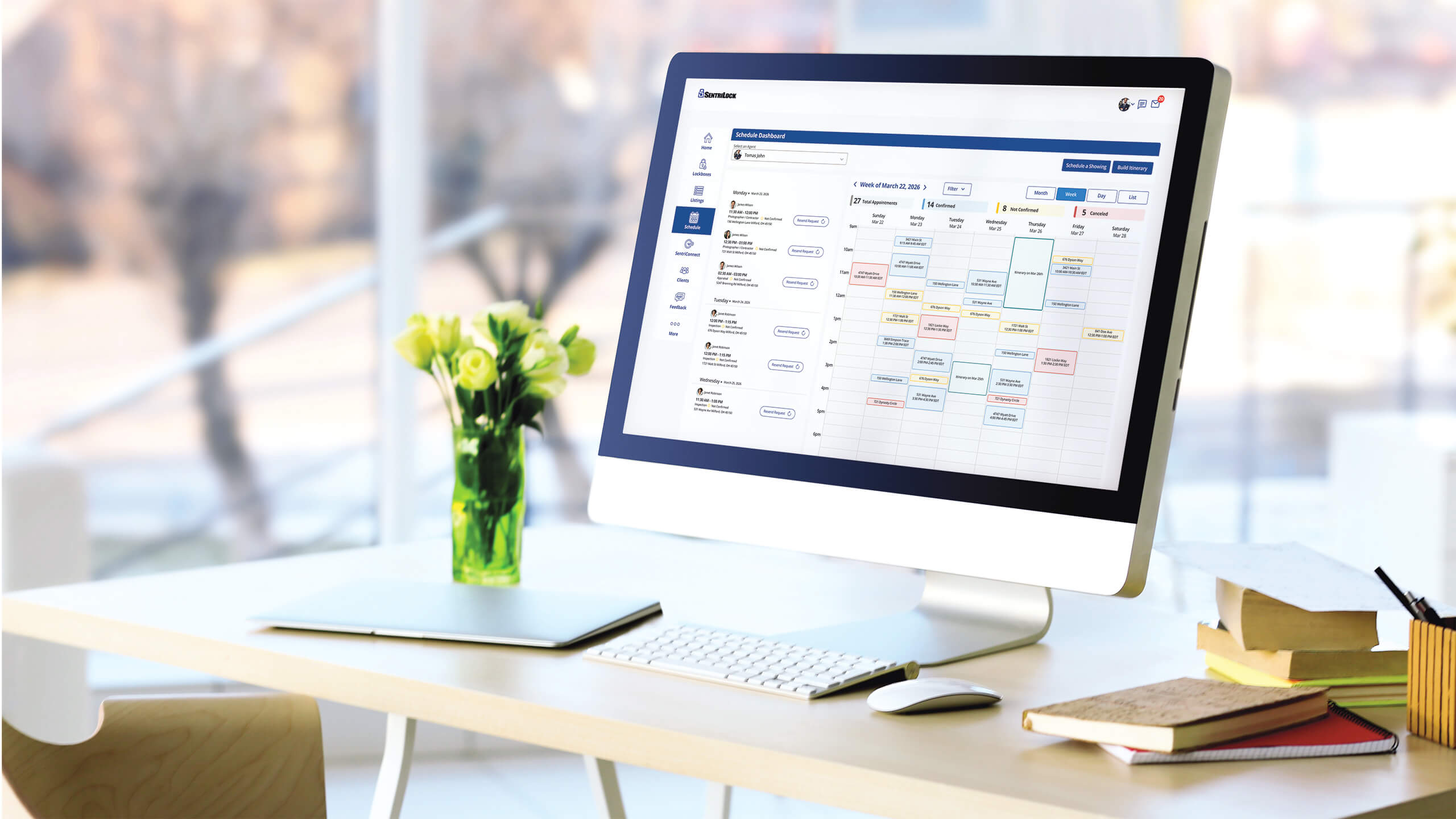
For lockboxes and access

Additional resources
Explore our knowledge base, brand assets, media coverage and live training schedules.

Support
Find answers fast in our help center.

SentriLock branding
Download official logos and brand assets.

Media
See press releases and company news.

Training
Master the platform with live sessions.