
Lockbox and access resources
Find quick guides, video tutorials, and troubleshooting steps for your SentriGuard® and legacy lockboxes.
Downloading the SentriKey Real Estate Mobile App
- Open the App Store (iPhone) or Google Play Store (Android).
- Search for SentriKey Real Estate.
- Tap Download / Install.
- Once installed, open the app and log in with your SentriKey ID and password.
- Follow the setup prompts to complete initial activation.
Download & Set Up the SentriKey® Real Estate App
Step-by-step instructions for downloading, installing, and setting up the SentriKey® Real Estate mobile app on iOS and Android.
The Agent Safety feature is not a substitute for dialing 911. It sends a message to your safety notification contacts you have set up to let them know you are in danger and provide your location. View the Agent Safety Release Agreement ↗.
Enabling the Agent Safety Feature
- Open the SentriKey® Real Estate App and navigate to the Hamburger Menu (≡) → My Settings → Agent Safety.
- Toggle the feature On.
- Follow the automatic prompt to set up your safety contacts. Tap the blue + icon to add additional people.
How to Use the Agent Safety Feature at a Showing
- Follow the standard app instructions to open a lockbox key bin ↗.
- Ensure the Agent Safety toggle is on before proceeding.
- When the safety check-in screen appears, select the appropriate response:
- Send Alert: Immediately texts your active location and a distress message to your emergency contacts.
- Ask me Again in 2 Minutes: Delays the check-in prompt temporarily.
- End Agent Safety Timer: Closes the safety session once you are secure.
- If you do not respond to the first check-in prompt, a second one will appear 60 seconds later.
- If the second prompt goes unanswered, the app automatically triggers the Send Alert message to your contacts.
Enable Agent Safety
Learn how to enable and use the Agent Safety feature in the SentriKey® Real Estate App to alert designated contacts if you need help during a showing.
Shackle release codes are used for Non-Bluetooth (BLE) lockboxes.
How to Generate a Shackle Release Code
- Open the SentriKey® Real Estate app and tap the Release Shackle tile.
- Tap Get Shackle Release Code.
- Select the desired lockbox.
- Pick a date for the code and tap Get Shackle Release Code.
- Verify credentials via PIN or biometrics. Your Shackle Release Code will appear.
How to Use a Shackle Release Code
- Press ENT on the lockbox keypad. Type in the Shackle Release Code and press ENT.
- The shackle will release.
- Pull the shackle free.
Generate Shackle Release Codes
Instructions for generating a shackle release code and how it’s used.
Granting SentriConnect® Access from the SentriKey® Real Estate App
- Tap the Hamburger Menu ≡ → My Lockboxes → Grant SentriConnect Access.
- Select the assigned lockbox from your inventory.
- Enter the recipient's email address and set the access window (from 30 minutes up to 14 days).
- Tap Grant Access.
Note: Unregistered users receive an automated email invitation to download SentriConnect®.
Grant SentriConnect® Temporary Access to Third Parties
Grant secure, trackable app-based lockbox access to third party users like out-of-area agents, inspectors, or contractors.
Method 1: Bluetooth (BLE)
- Open the SentriKey® Real Estate app.
- Press the ENT button on the lockbox keypad.
- Verify credentials via PIN, Touch ID, or Face ID. The key bin will open.
Method 2: Touch-N-Show (NFC)
Watch the tutorial ↗
- Open the SentriKey® Real Estate app.
- Tap Touch-N-Show on the app Home screen.
- Confirm the lockbox is a SentriGuard® model.
- Hold your phone against the lockbox target area to open the key bin.
Open a Key Bin (Bluetooth & Touch-N-Show NFC)
Learn how to open a SentriLock key compartment using Bluetooth proximity or Touch-N-Show NFC technology.
Releasing the Shackle on a Bluetooth (BLE) Lockbox
- Open the SentriKey® Real Estate app and tap the Release Shackle tile.
- Press ENT on the lockbox keypad.
- Verify credentials via PIN or biometrics, confirm the warning prompt, and the shackle will release.
- Pull the shackle free.
Releasing the Shackle on Non-Bluetooth (BLE) Lockbox with a Shackle Release Code
- Press ENT on the lockbox keypad. Type in the Shackle Release Code and press ENT.
- The shackle will release.
- Pull the shackle free.
See our tutorial on How to Generate Shackle Release Codes ↗ for instructions on how to generate them.
Release a SentriLock Lockbox Shackle
Learn how lockbox owners can release a shackle using Bluetooth or by with a manual shackle release code.
SentriLock solution resources
Browse our complete library of written and video tutorials. Select a product line below to find exact walkthroughs for troubleshooting hardware, configuring apps, and mastering your workflow.
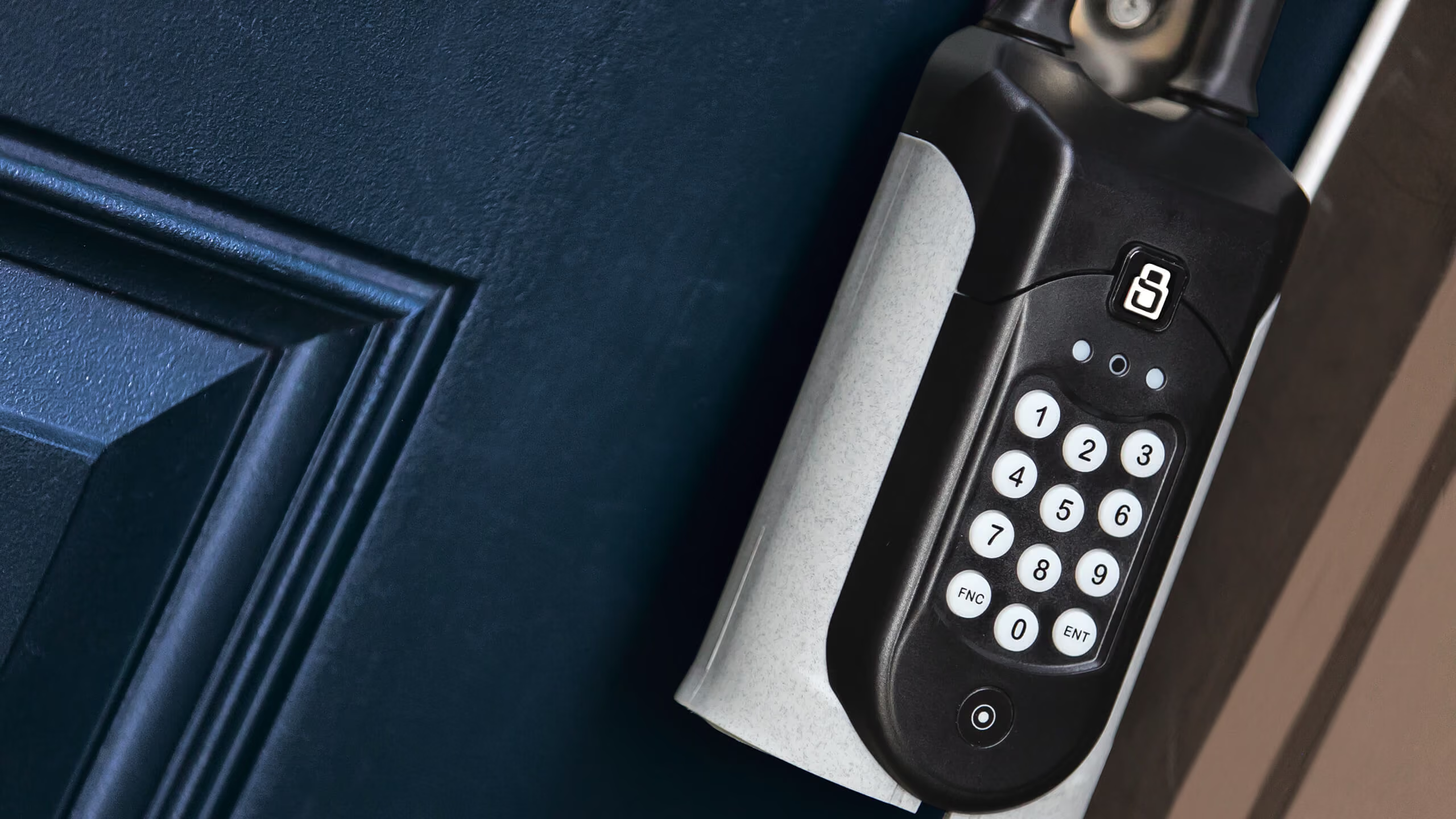
For lockboxes and access
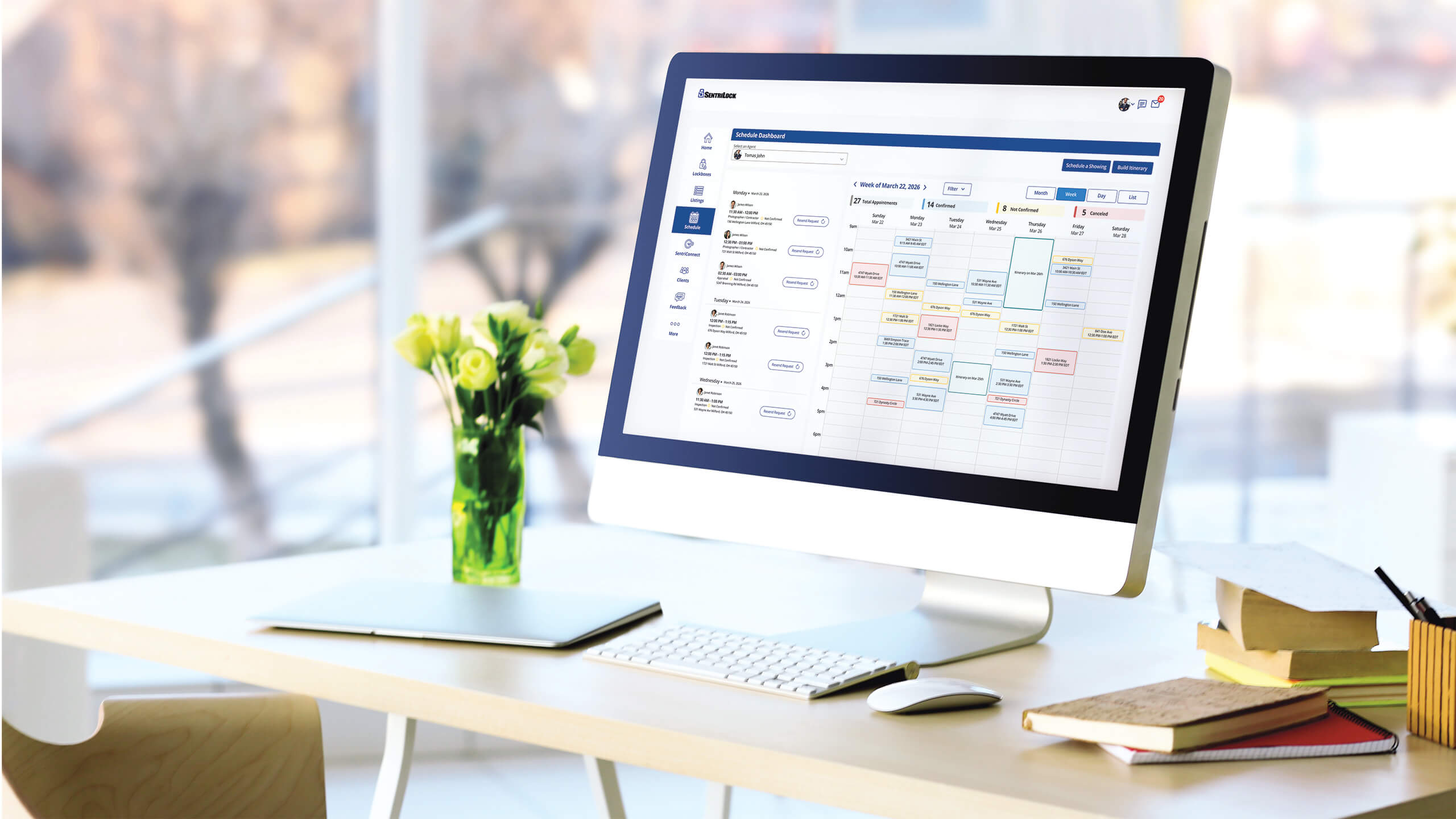
For SentriKey® Showing Service
Additional resources
Explore our knowledge base, brand assets, media coverage, and live training schedules.

Support
Find answers fast in our help center.

SentriLock branding
Download official logos and brand assets.

Media
See press releases and company news.

Training
Master the platform with live sessions.