
Lockbox and access resources
Find quick guides, video tutorials, and troubleshooting steps for your SentriGuard® and legacy lockboxes.
Offline Lockbox Access Guide
Best Practice Before You Start Your Day: You can unlock Bluetooth lockboxes without cellular service as long as your app is credentialed prior to losing connection. Just open the SentriKey® Real Estate app with a stable internet connection before leaving for showings and check for the green checkmark in the center of the home screen.
- Open the Open the SentriKey® Real Estate app while connected to the internet. Look towards the center of the screen for a green checkmark or a red X.
- Green Check Mark: A green check mark confirms 24-hour offline credentials are stored.
- Resolving Red X: Force close and reopen app with internet connection to refresh credentials.
Field Connection Tip: Enable Airplane Mode while keeping Bluetooth ON to reduce signal interference.
Access Lockboxes Without Cellular Data or Wi-Fi
Learn how to credential your app for offline lockboxes access in remote dead zones.
Note: This can only be done in the Web Portal of the SentriKey Real Estate at this time.
Adding Team Members
- Log into SentriKey® Web Portal and click your Profile Dropdown Icon in the top right→ My Settings → Account Settings.
- Locate Team Members and search for the agent's name.
- Send invitation. Once accepted, both agents share lockbox ownership, showing schedules, and listing access.
Add Team Members
Instructions for inviting team members to share lockbox ownership and listing management duties.
FlexCodes® can only be generated for the SentriGuard® lockbox model. FlexCodes® are valid for a minimum for 30 minutes or a maximum of 31 days. Legacy lockbox models use One Day Codes ↗.
How to Assign a FlexCode®
- From the SentriKey® Real Estate app home screen, tap the Get Access Code tile.
- Select the lockbox, enter recipient details, and define the active time window.
- Tap Get FlexCode® and share the 13-digit code.
Tapping How to Use the Code will give further instructions on how someone can use the code. The instructions can be shared with them as well.
Assign FlexCodes® for Temporary Access
Instructions for generating and assigning a unique FlexCode® to provide scheduled access to a SentriGuard lockbox.
One Day Codes can be assigned to legacy SentriLock lockbox models. One Day codes are valid for a single day. SentriGuard® lockbox models use FlexCodes® ↗.
How to Assign a One Day Code
- From the SentriKey® Real Estate app home screen, tap Get Access Code.
- Select the lockbox, enter recipient details, and select the active date.
- Tap Get One Day Code and share the code with the intended person.
Tapping How to Use this Code will give further instructions on how someone can use the code. The instructions can be shared with them as well.
Assign One Day Codes for Temporary Access
Instructions for generating and assigning a unique One Day Code for single-day lockbox access.
Assigning/Unassigning a Lockbox Immediately After Shackle Release - Option 1
- On the the SentriKey® Real Estate app home screen, the the Release Shackle tile.
- After releasing the shackle, tap Assign to Property or Unassign from Property button on the Success screen.
- If assigning, select the property address and tap Confirm.
To add showing instructions after assigning, tap the More Settings button once property address is confirmed.
Assigning/Unassigning a Lockbox via Lockbox Inventory - Option 2
- On the SentriKey® Real Estate app home screen, navigate to the Hamburger Menu ≡ → My Lockboxes → Assign/Unassign Property.
- Select the desired lockbox.
- To Assign: Tap Assign to Property.
- To Unassign: Tap Unassign to return the lockbox to unassigned inventory.
Assign or Unassign a Lockbox to a Listing
Step-by-step instructions for assigning or unassigning a SentriLock lockbox to a property listing.
Replacing the Battery on a SentriGuard® Lockbox
What You Will Need: A SentriGuard replacement battery pack (3.6V Lithium AA with wire connector) and a T-15 TORX screwdriver.
SentriGuard batteries are specialized packs that include the wire connector. You must obtain them from your local Association.
- Engage Backup Battery: Press ENT. If unpowered, use a small pen tip to press the recessed center button beneath the logo until LEDs flicker.
- Remove Shackle & Top Cap: Release shackle via the SentriKey® Real Estate app. Once the shackle is removed, take off the rubber plug on the top of the lockbox, and loosen screw with a T-15 TORX screwdriver.
- Swap Battery: With the top rubber plug removed, unplug old battery, connect new battery, reassemble top cap tightly, and secure T-15 screw.
Updating Firmware
- In the SentriKey® Real Estate app, tap the Hamburger Menu ≡ → My Lockboxes → Update Firmware.
- Press ENT on the lockbox keypad and tap Update Now.
Note: It is normal for the lockbox lights to flash.
Replacing the Battery on an NXTLockbox
What You Will Need: 2x CR123A lithium batteries and a Phillips head screwdriver.
Note: If your lockbox is completely unpowered and won't open, connect a Power Paddle to the side port to supply temporary power before completing Step 1.
- Open the Compartment: Use your SentriKey® Real Estate app to open the lockbox key door.
- Remove the Battery Cover: Look inside the door, use your screwdriver to take out the battery cover screws, and lift the cover open.
- Replace the Batteries: Take out the old batteries. Put in the 2 new CR123A batteries, making sure the plus (+) ends match the plus (+) symbols printed inside the cover.
- Put the Cover Back On: Slide the tabs on the bottom of the cover into place, lay it flat, and tighten the screws back down.
- Sync with Your App: Connect to the lockbox one more time using the SentriKey® Real Estate app so the internal clock automatically updates to the correct time.
Change the Battery on SentriLock Lockboxes (All Models)
Complete guide for replacing SentriGuard® and NXT lockbox batteries and also running wireless firmware updates.
SentriLock solution resources
Browse our complete library of written and video tutorials. Select a product line below to find exact walkthroughs for troubleshooting hardware, configuring apps, and mastering your workflow.
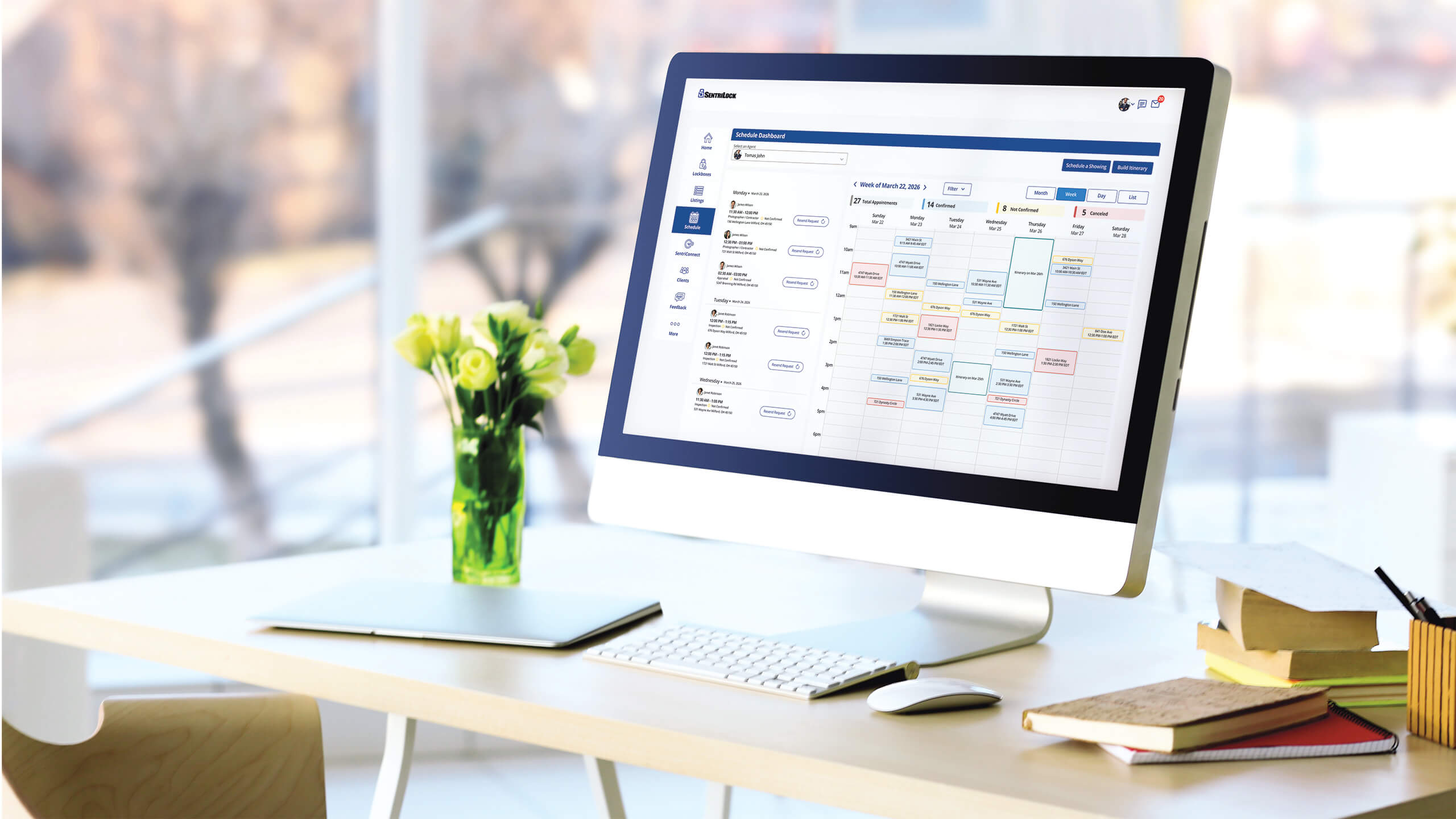
For SentriKey® Showing Service
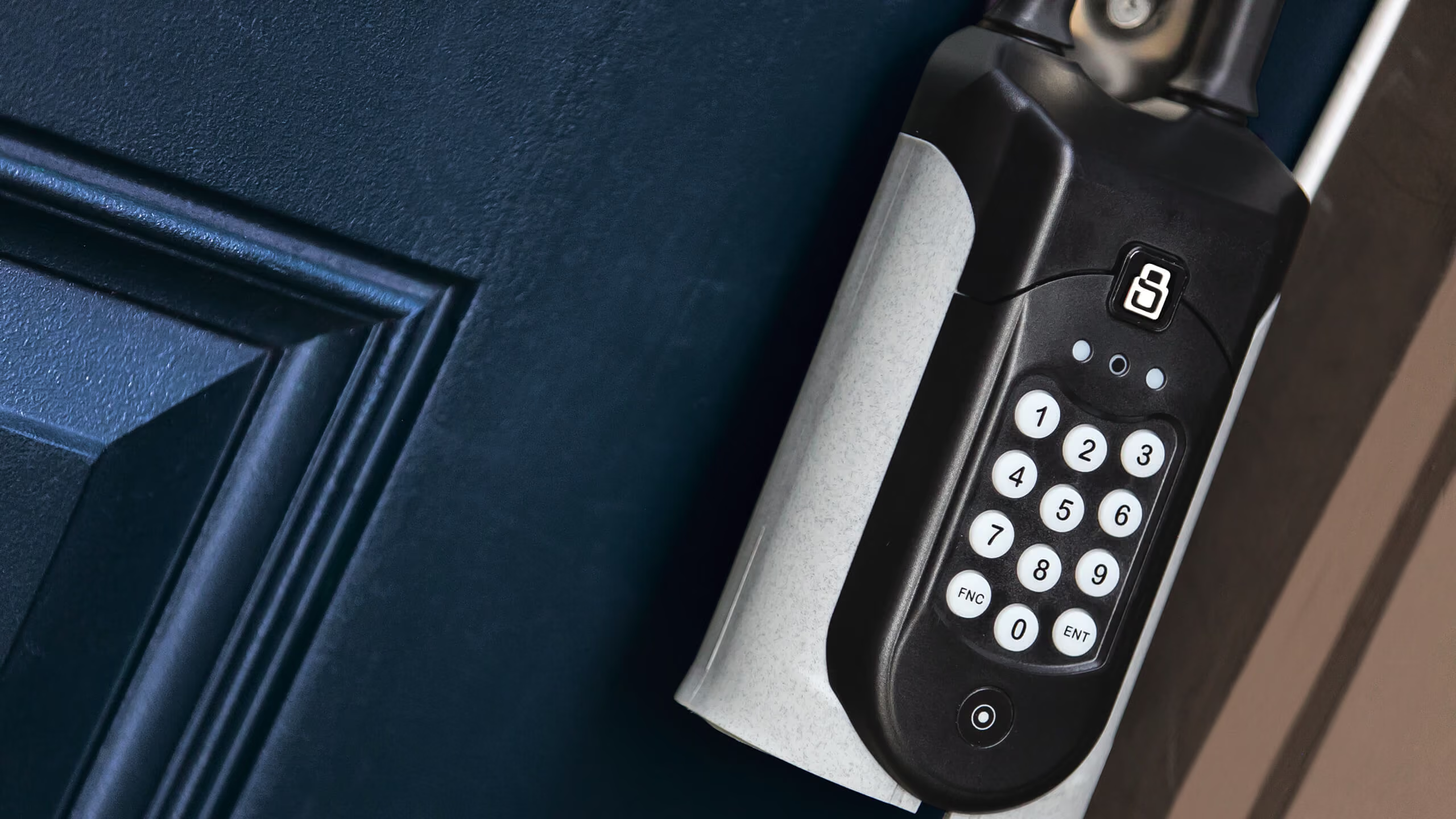
For lockboxes and access
Additional resources
Explore our knowledge base, brand assets, media coverage, and live training schedules.

Support
Find answers fast in our help center.

SentriLock branding
Download official logos and brand assets.

Media
See press releases and company news.

Training
Master the platform with live sessions.